
The Templately Theme Builder allows you to add a template post & page in Templately for Elementor and the Gutenberg editor. Here you can create your post & page template and use it in any part of your website.
Follow the guide to learn how to configure the Template theme library to add a single post & page template.
How to Add a Single Post Template in Templately Theme Builder? #
First, from your WordPress dashboard, go to the ‘Theme Builder’ tab under Templately. Here, you can choose the option to create the template.
Step 1: Add New Template #
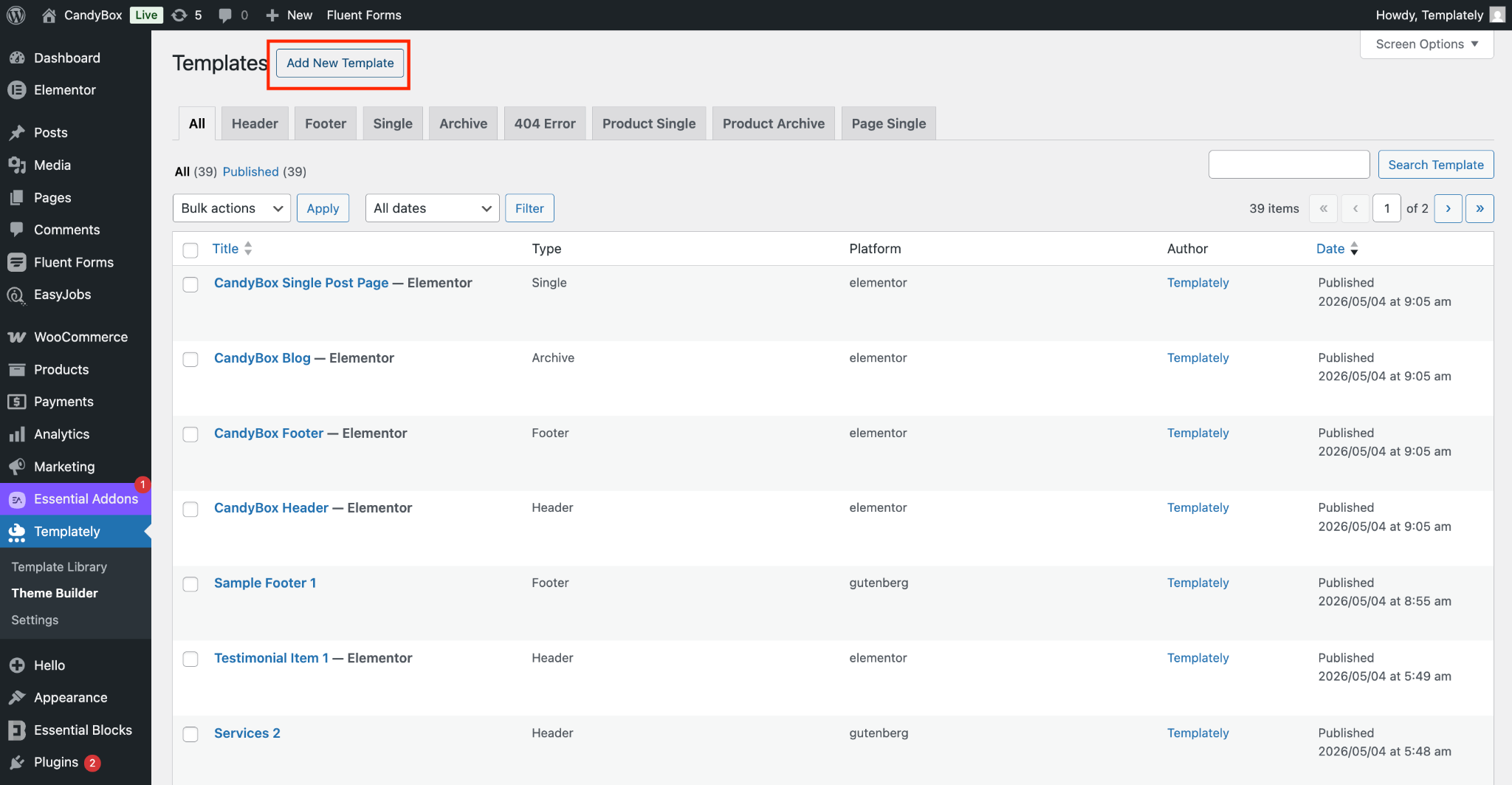
Head over to the ‘Theme Builder’ dashboard and click on the ‘Add New Template’ button. From there, you will see various options available to create your new template.
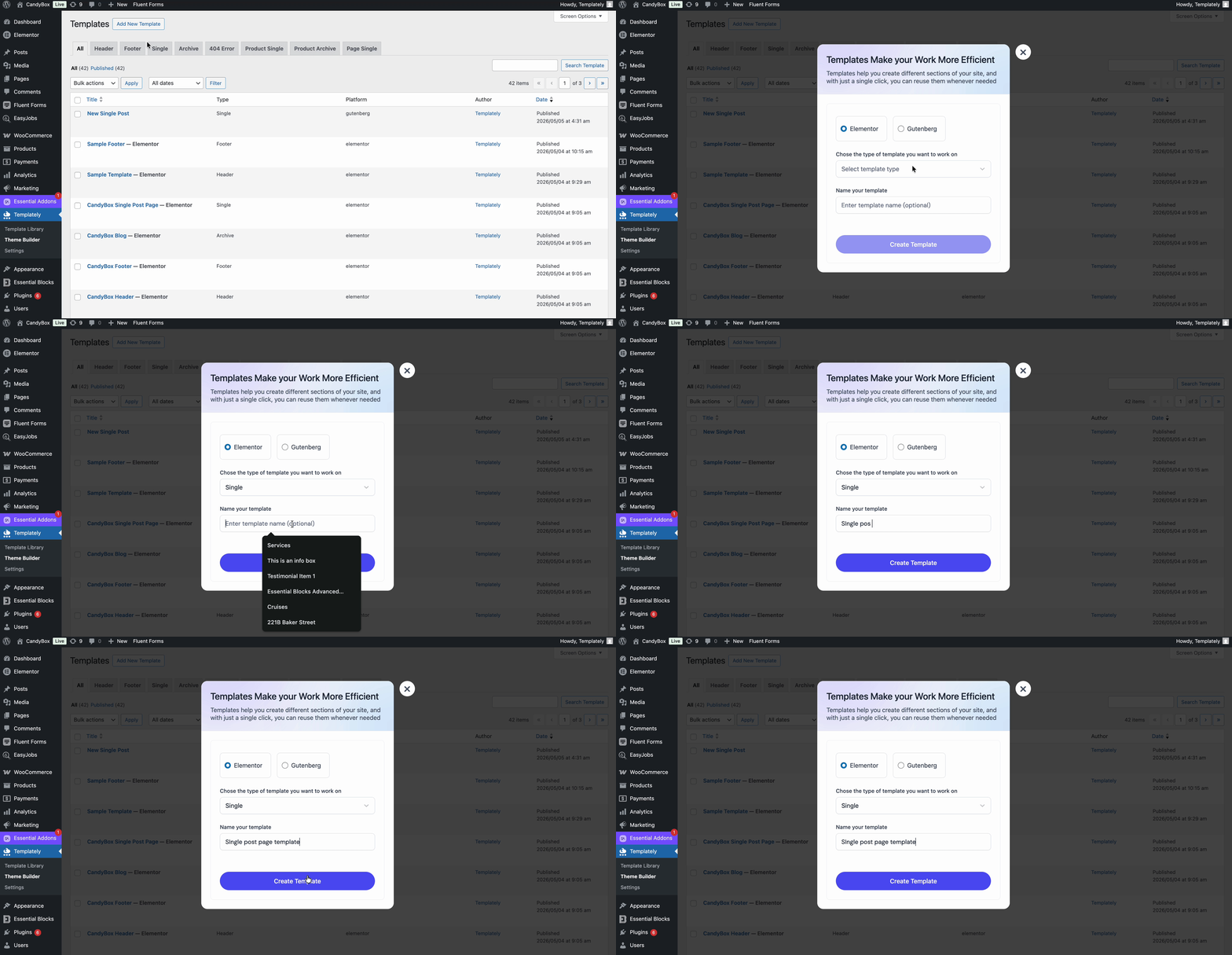
After clicking the button, a pop-up window will appear. From there, choose your preferred editor. To create a single-page template, select ‘Single’ from the template type dropdown, then give your template a name for easy identification. Finally, click ‘Create Template’ to build a new single post template for your website.
Step 2: Create a Single Post Template #
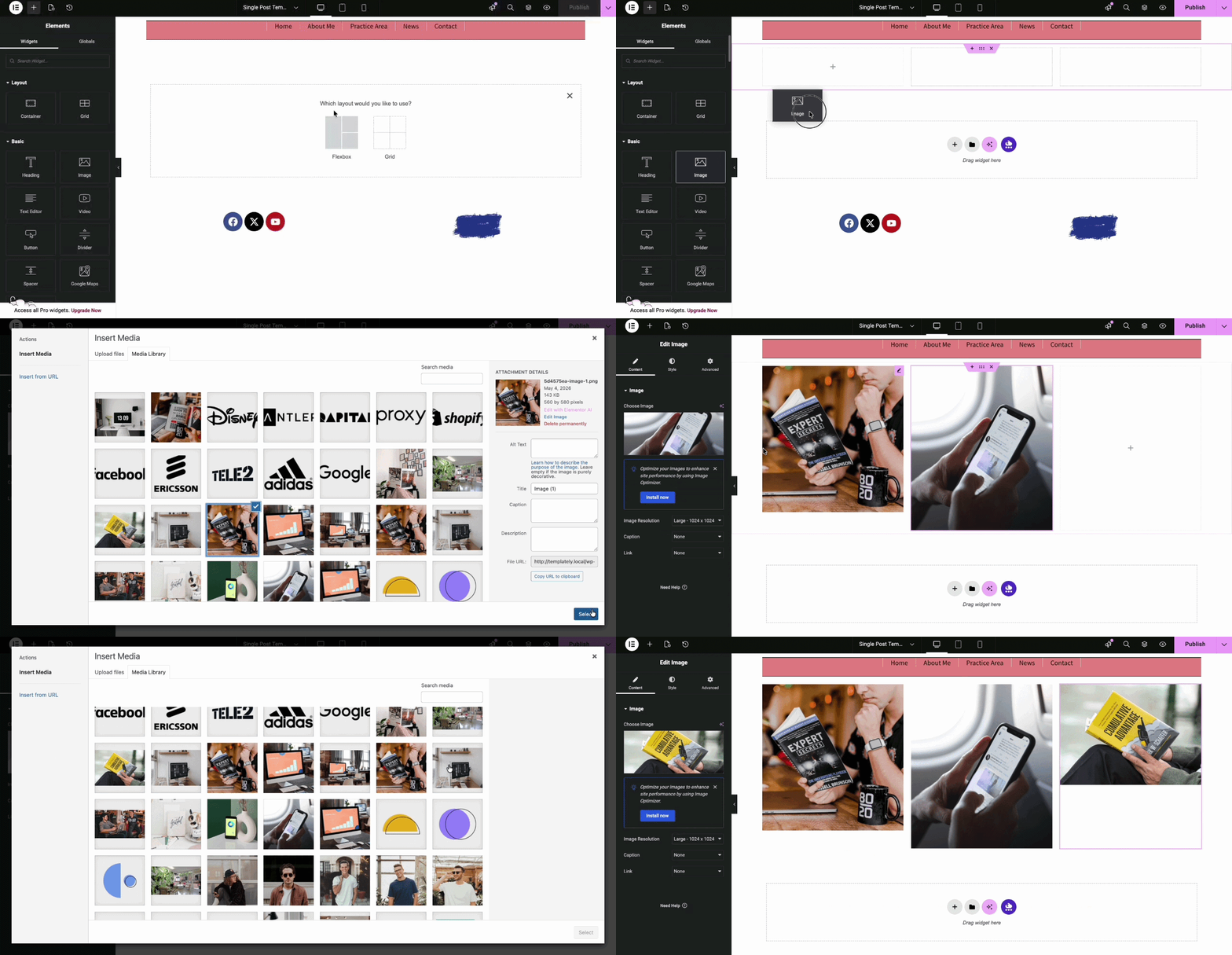
Once you click the button, you will be redirected to your preferred editor. There, use the available elements to design a new single post template for your website. When you are done, click the ‘Publish’ button to make it live.
Step 3: Add the Single Post to a Specific Page #
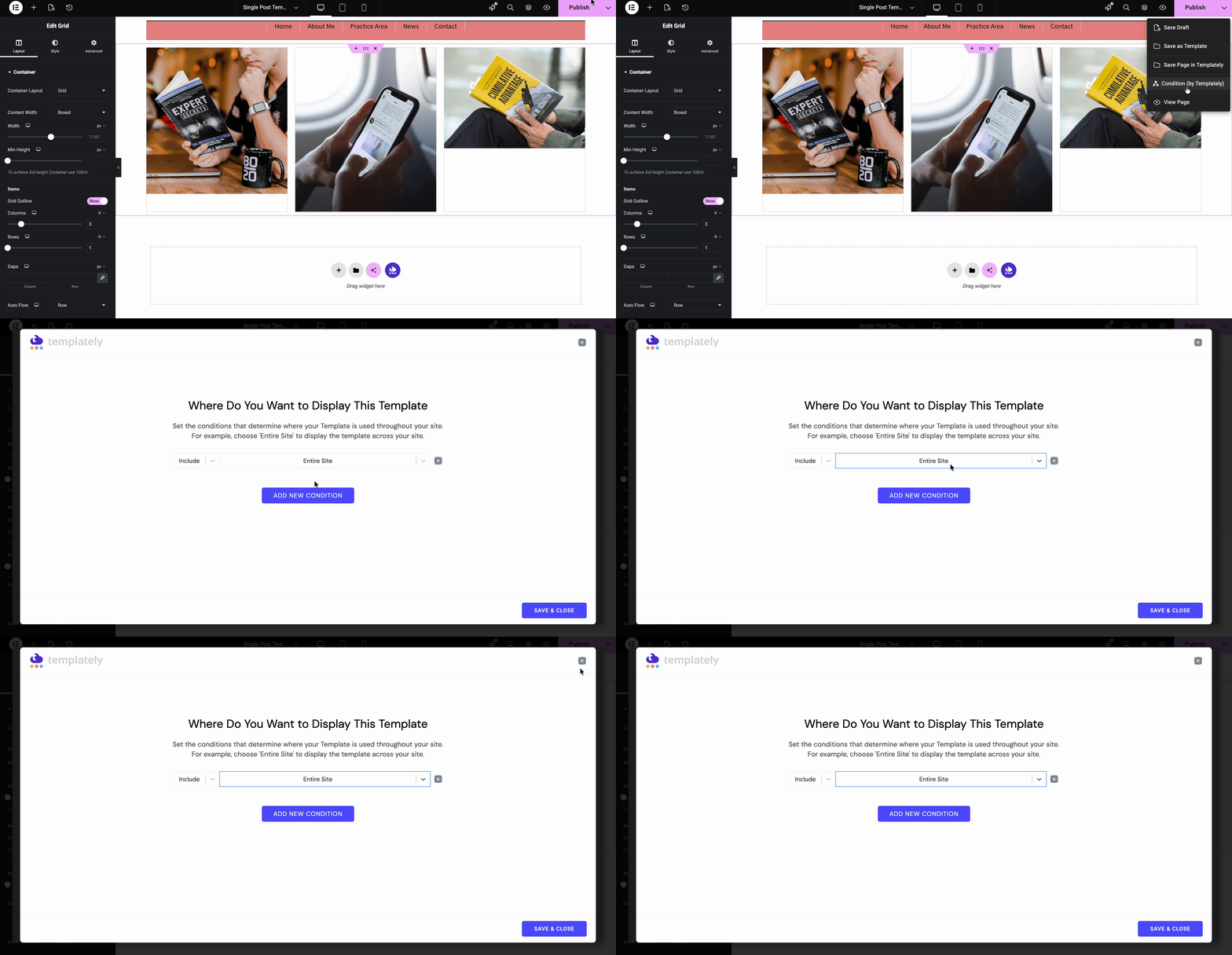
From the ‘Publish’ button dropdown, select the ‘Condition (by Templately)’ option. This will allow you to define where you want the footer template to appear on your website. Choose your desired page, then click ‘Save & Close’ to apply the changes.
How to Add a Single Page Template in Templately Theme Builder? #
To add a single-page template to your website, like in the previous steps, go to the WordPress dashboard and then go to the ‘Theme Builder’ tab under Templately.
Step 1: Add a New Template #
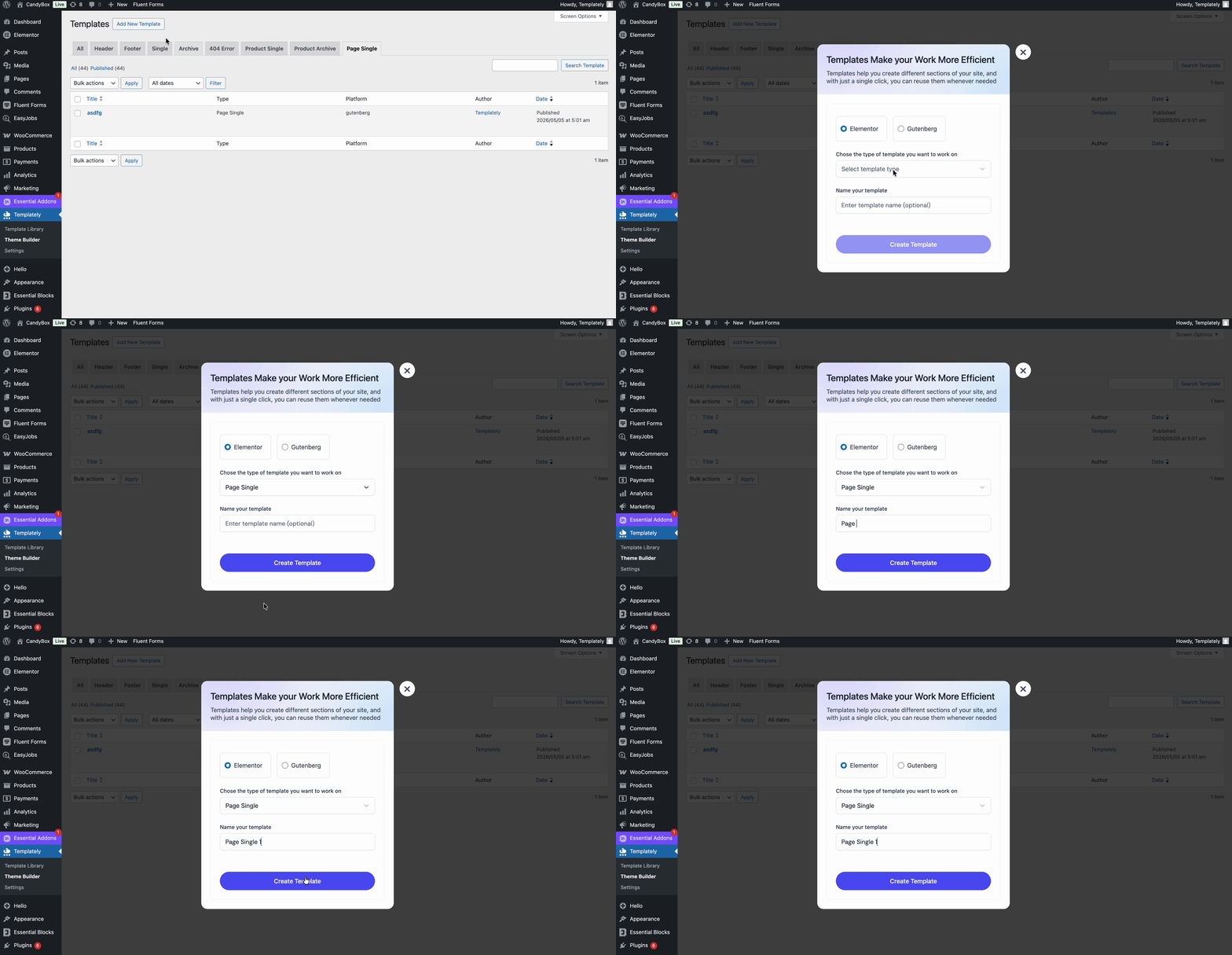
From the ‘Theme Builder’ dashboard, click on the ‘Add New Template’ button. Here, you will find different options to build your new template. From there, choose the editor and then select ‘Single Page’ as the type of template. You can also add a name for your template. Click on the ‘Create Template’ button and it will take you to the editor.
Step 2: Create a Single Page Template #
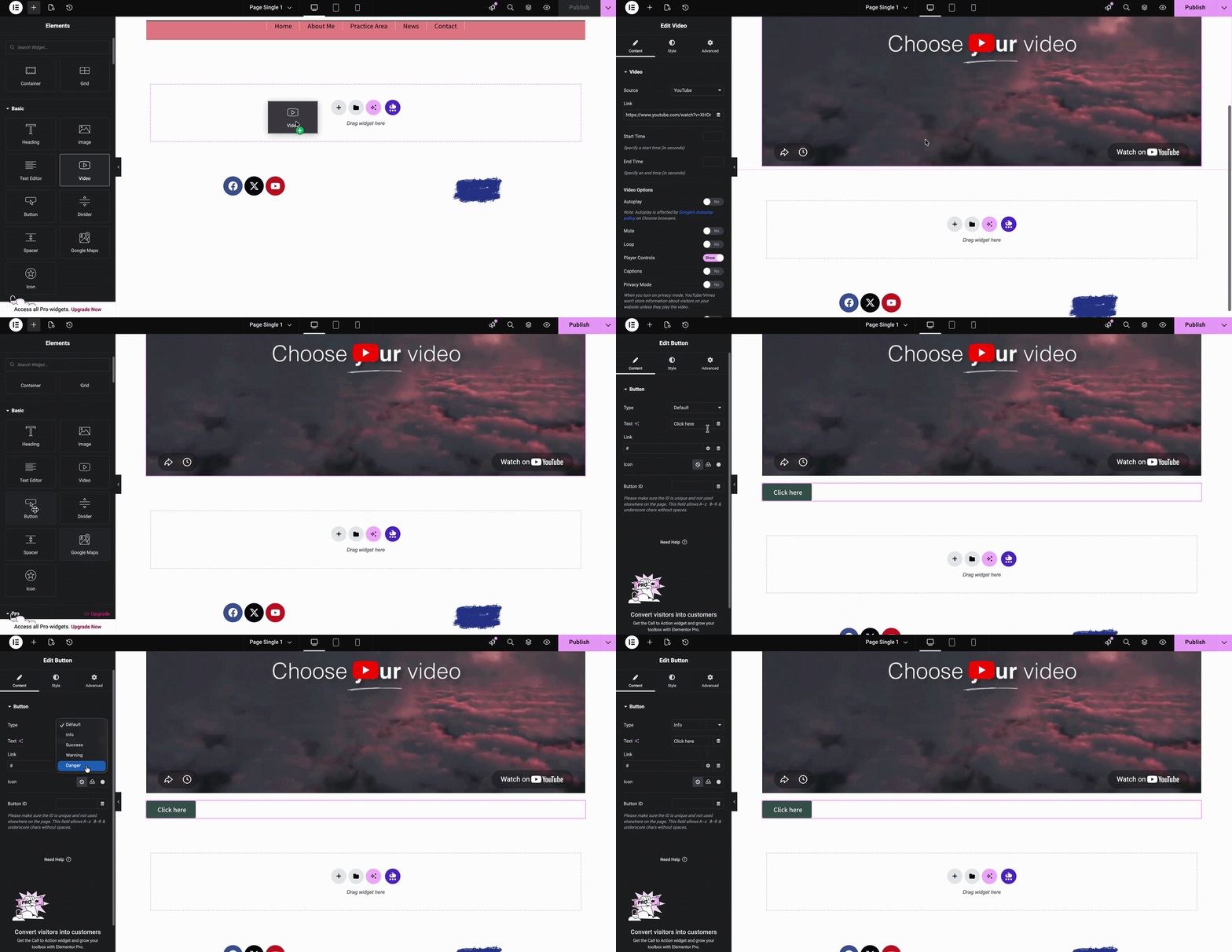
Clicking the button will redirect you to your preferred editor. There, use the available elements to create a new single-page template for your website. Once your design is complete, click the ‘Publish’ button.
Step 3: Add the Single Page Template to a Specific Page #
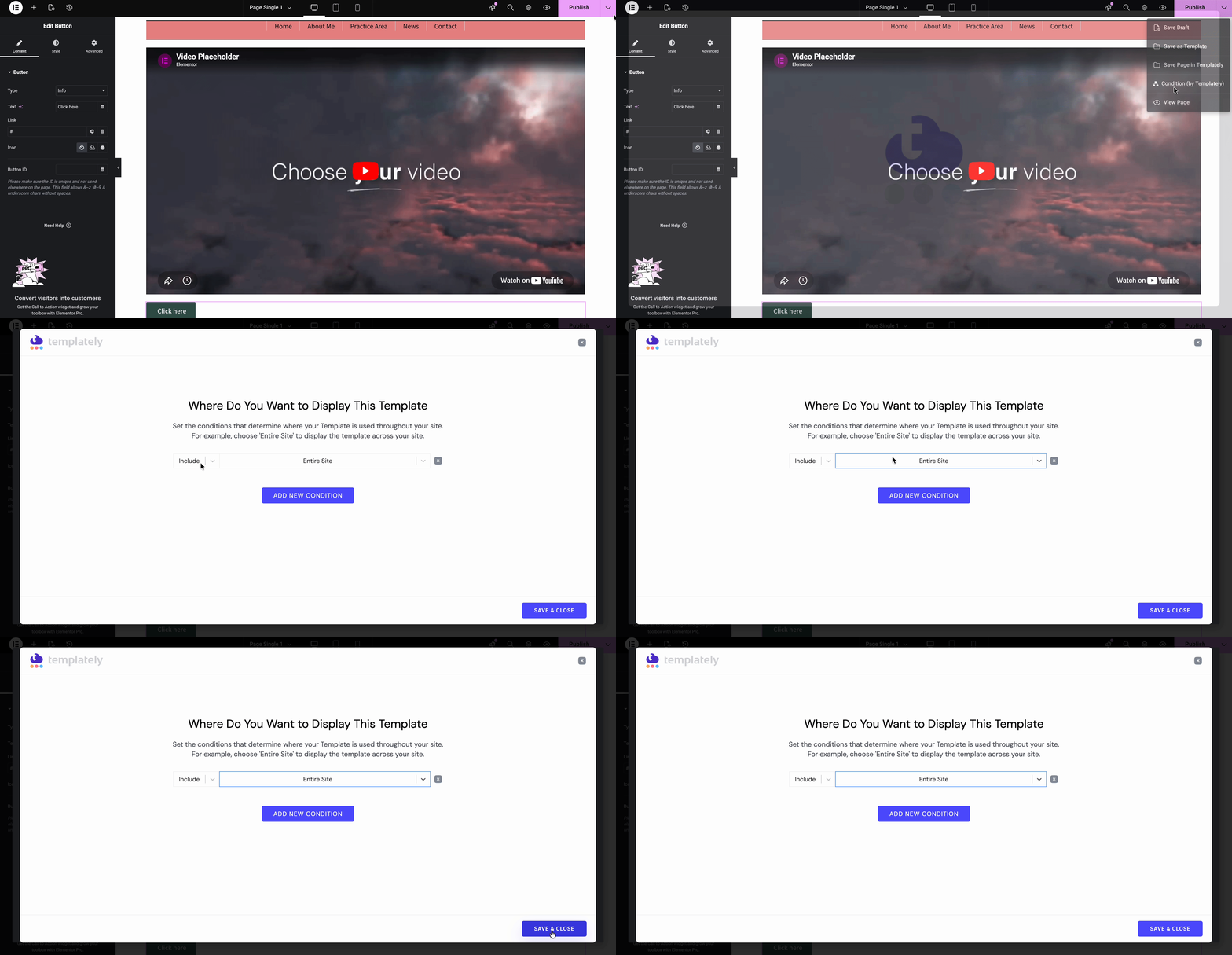
Click the dropdown arrow on the ‘Publish’ button and select the ‘Condition (by Templately)’ option. From there, you can set the conditions to control where the footer template appears on your website. Choose your preferred page, then click ‘Save & Close’ to apply and save your changes.
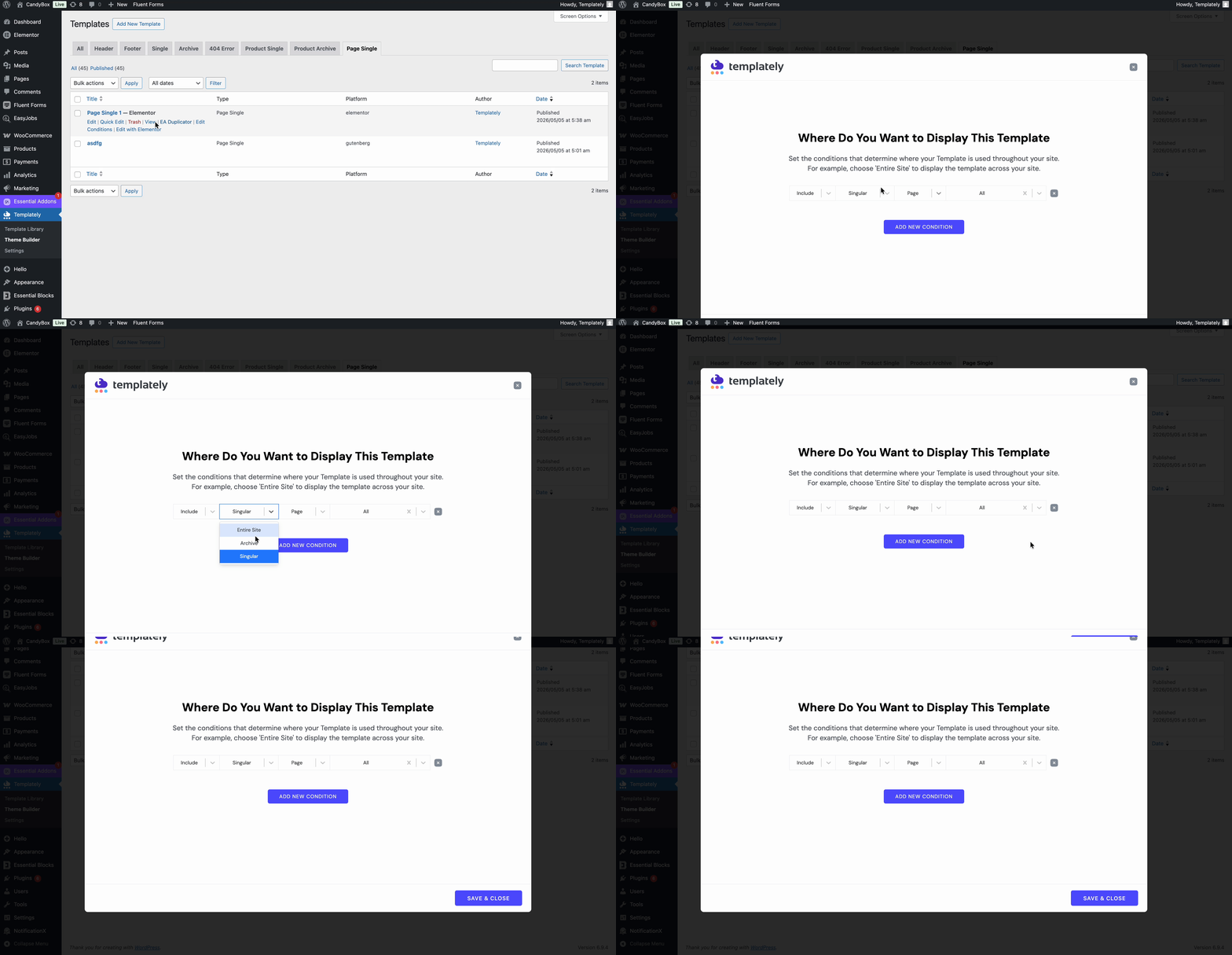
Note: If you are using the Gutenberg editor to create a single post or page, return to the ‘Theme Builder’ dashboard after creating the template. Then, click on ‘Edit Conditions’ to choose where the template should appear on your website.
Final Outcome of Post & Page in Templately Theme Builder #
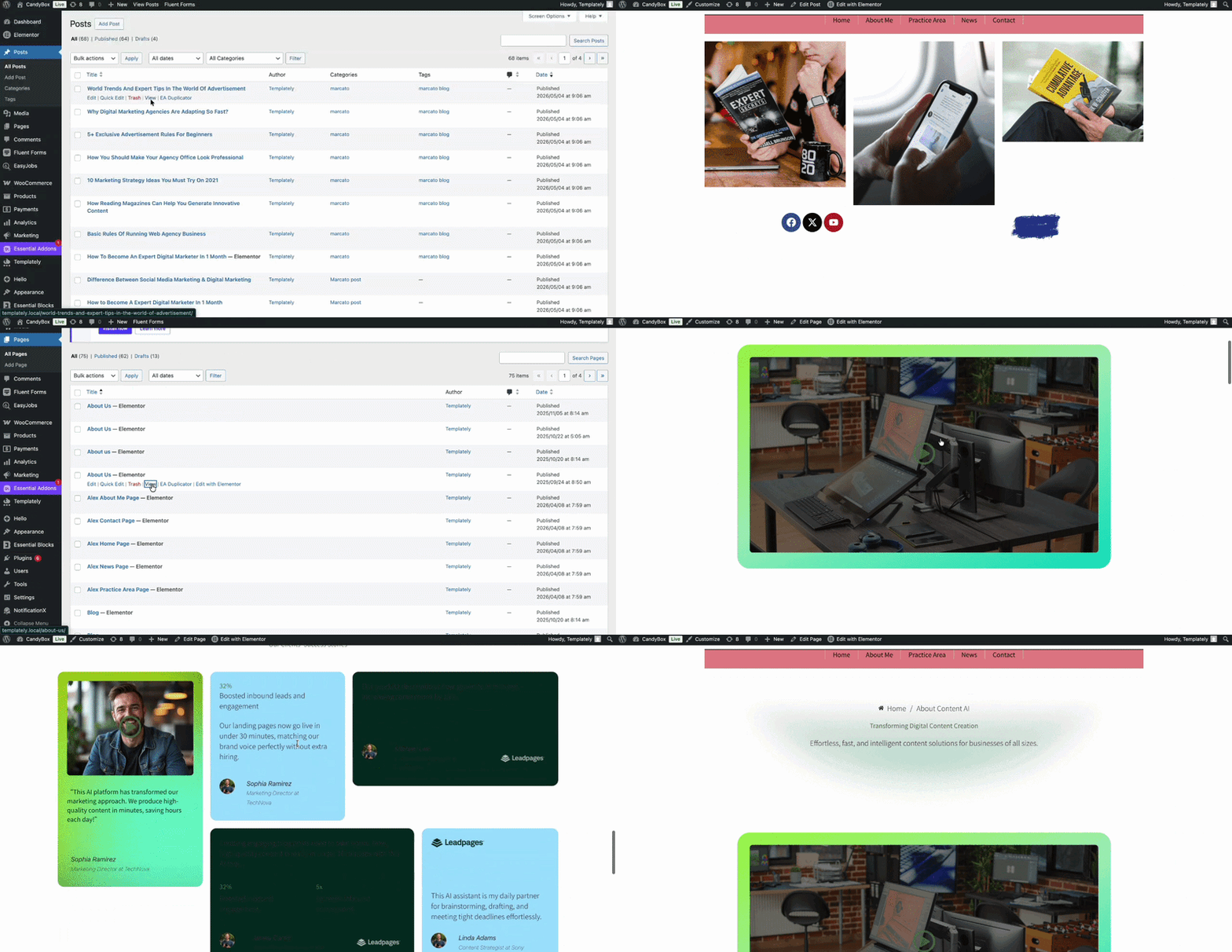
Finally, on your website, you will see that the single post & page template is LIVE on your preferred pages on the website. This way, you can create your own template and place it wherever you prefer.
This is how you can configure single post & page template settings from the Templately Theme Builder. Getting stuck? Contact our support team for any help you need.