
- What Is a Templately Bundle Plan?
- Templately Features Included in Every Bundle
- Step 1: Choose Your Bundle on the Pricing Page
- Step 2: Complete Your Purchase
- Step 3: Download Essential Addons Pro or Essential Blocks Pro
- Step 4: Install and Activate the Pro Plugin
- Install the Pro Plugin Before You Import Templates
- How to Update Essential Addons Pro and Essential Blocks Pro
A Templately bundle plan gives you the Templately template library together with Essential Addons Pro for Elementor, Essential Blocks Pro for Gutenberg, or both, at a lower price than buying each one separately. This guide shows you how to pick the right plan, complete your purchase, and get the Pro plugins running on your WordPress site.
What Is a Templately Bundle Plan? #
Every Templately plan tier (Pro, Freelancer, Agency and Lifetime) is available in four versions:
| Plan type | What you get | Best for |
| Regular | Templately only | Users who only need the template library |
| Gutenberg Bundle | Templately + Essential Blocks Pro | Sites built with the WordPress block editor (Gutenberg) |
| Elementor Bundle | Templately + Essential Addons Pro | Sites built with Elementor |
| Combo Bundle | Templately + Essential Addons Pro + Essential Blocks Pro | Teams and agencies that build with both Elementor and Gutenberg |
Templately Features Included in Every Bundle #
Every Templately bundle plan is built on a full Templately plan, so along with Essential Addons Pro, Essential Blocks Pro or both, you get everything your plan includes from day one:
- 6,500+ ready templates for Elementor and Gutenberg, including full website packs, pages and blocks.
- Active sites, full site imports and AI credits based on your plan tier (see the table below).
- Unlimited WorkSpace to collaborate with your team.
- Unlimited MyCloud items to save and reuse your templates across projects.
- Unlimited local sites to build and test before you go live.
| Pro | Freelancer | Agency | Lifetime | |
| Active sites | 5 | 10 | 100 | Unlimited |
| Full site imports per month | 5 | 10 | 100 | 500 |
| Monthly AI credits | 500 | 1,000 | 10,000 | 50,000 |
Step 1: Choose Your Bundle on the Pricing Page #
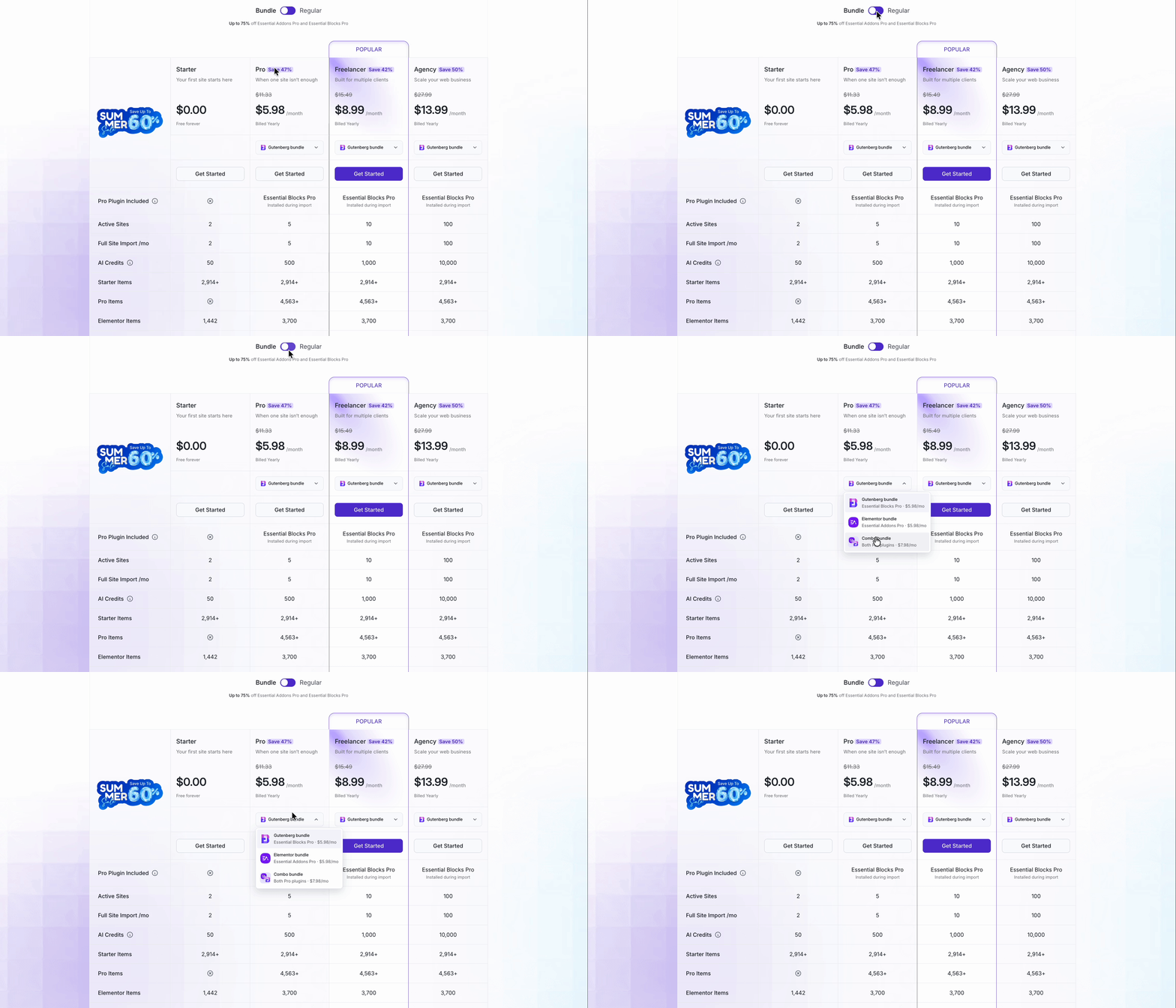
Open the Templately pricing page and switch the pricing toggle to Bundle to see every Templately bundle plan. The Gutenberg bundle is selected by default. Use the dropdown in each plan to switch to the Elementor bundle, or pick the Combo bundle to get both Pro plugins. Switch the toggle back to Regular to see Templately on its own.
Note: Prices change with campaigns. The pricing page always shows the current price.
Step 2: Complete Your Purchase #
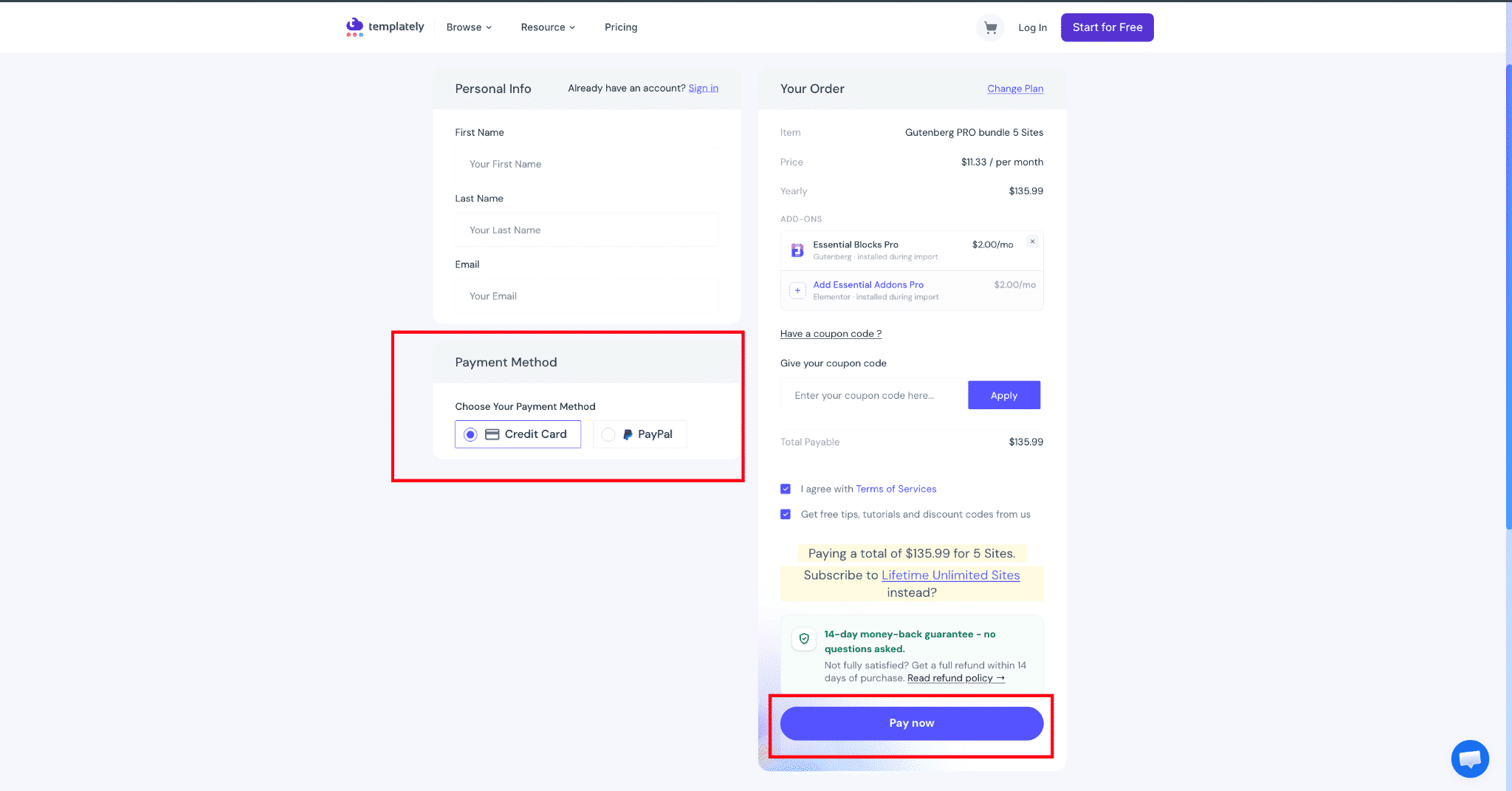
Click Get Started on the plan you want. You are taken to the Templately store with that plan in your cart. Check that the order summary shows the right plan and bundle, enter your billing details, choose a payment method and complete the payment.
Already on a paid Templately plan? You can also open the Subscription page inside the Templately plugin, switch the plan table to Bundle and pick an upgrade from there. For the regular plans, see how to purchase Templately PRO.
Step 3: Download Essential Addons Pro or Essential Blocks Pro #
Once your Templately bundle plan is active, you can download the Pro plugins it includes from two places. Use whichever is easier for you; both give you the same .zip file.
Option 1: From Your WordPress Dashboard #
Make sure your site is connected to the Templately account you bought the plan with, then:
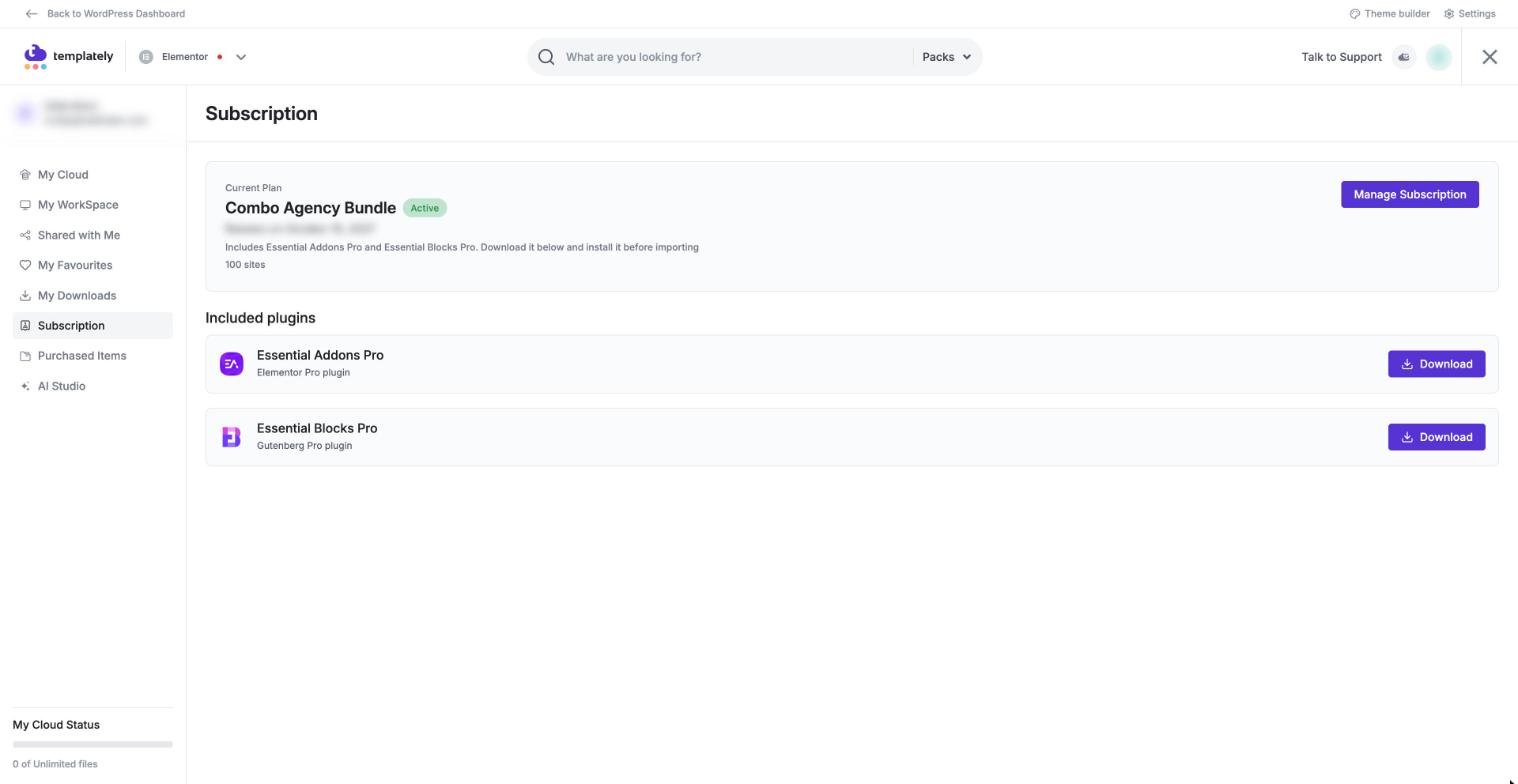
- In your WordPress dashboard, open Templately and go to Subscription in the left menu.
- Find the Included plugins section under your current plan. It lists every Pro plugin your plan includes.
- Click Download next to Essential Addons Pro or Essential Blocks Pro. Your browser saves the plugin as a .zip file.
Note: Only WordPress administrators can see the Subscription page and download the Pro plugins there. If a download is not ready, the row tells you why: for example, if the download limit was reached, wait a while and click Try again.
Option 2: From Your Templately Account #
You can also download the Pro plugins from your profile on templately.com, without opening WordPress. This is handy when you want the files ready before you set up a site.
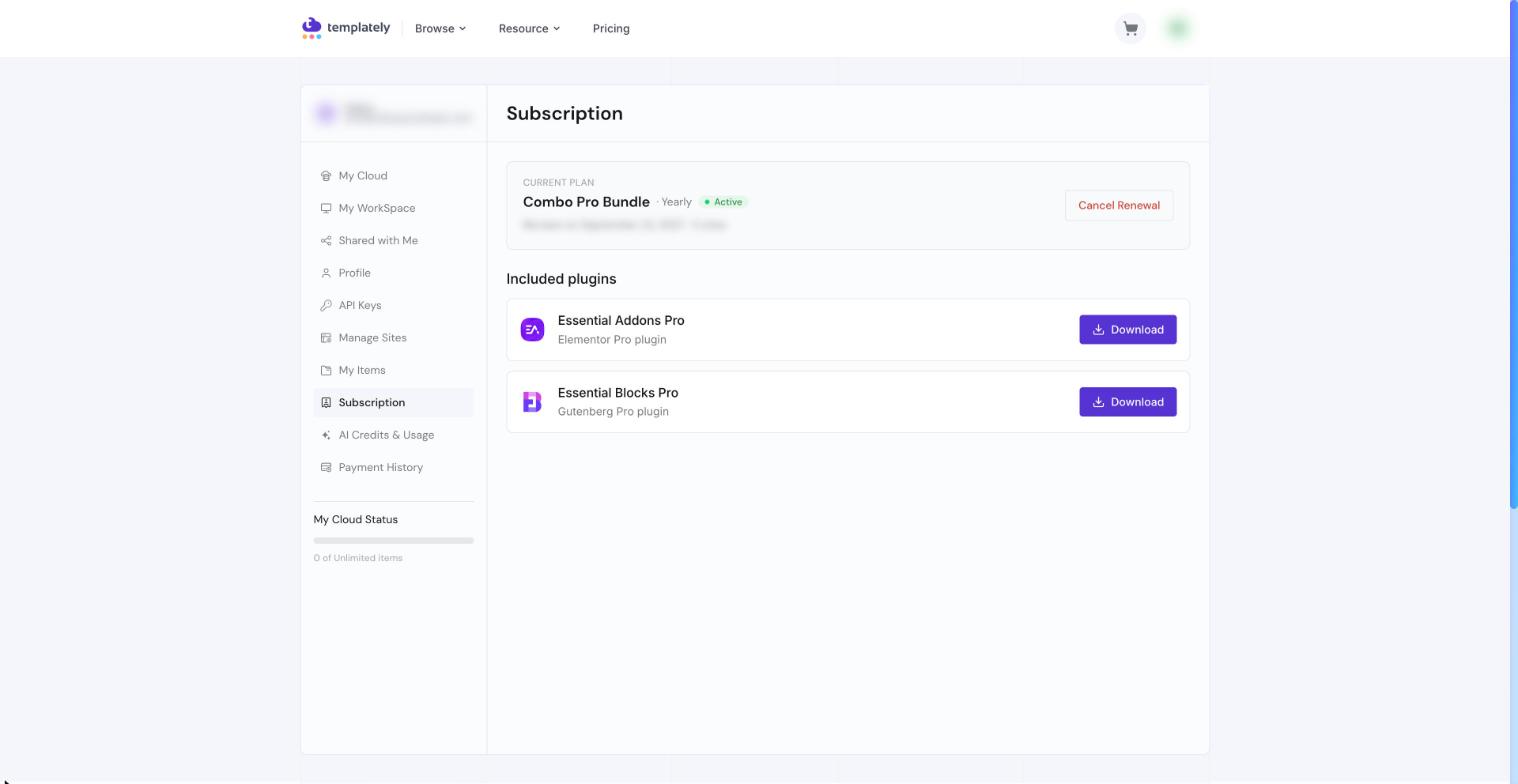
- Log in to templately.com.
- Click your profile picture at the top right and choose Subscription.
- Under Included plugins, click Download next to the Pro plugin you need.
Step 4: Install and Activate the Pro Plugin #
Templately does not install Pro plugins for you, so the last step is yours. It takes less than a minute:
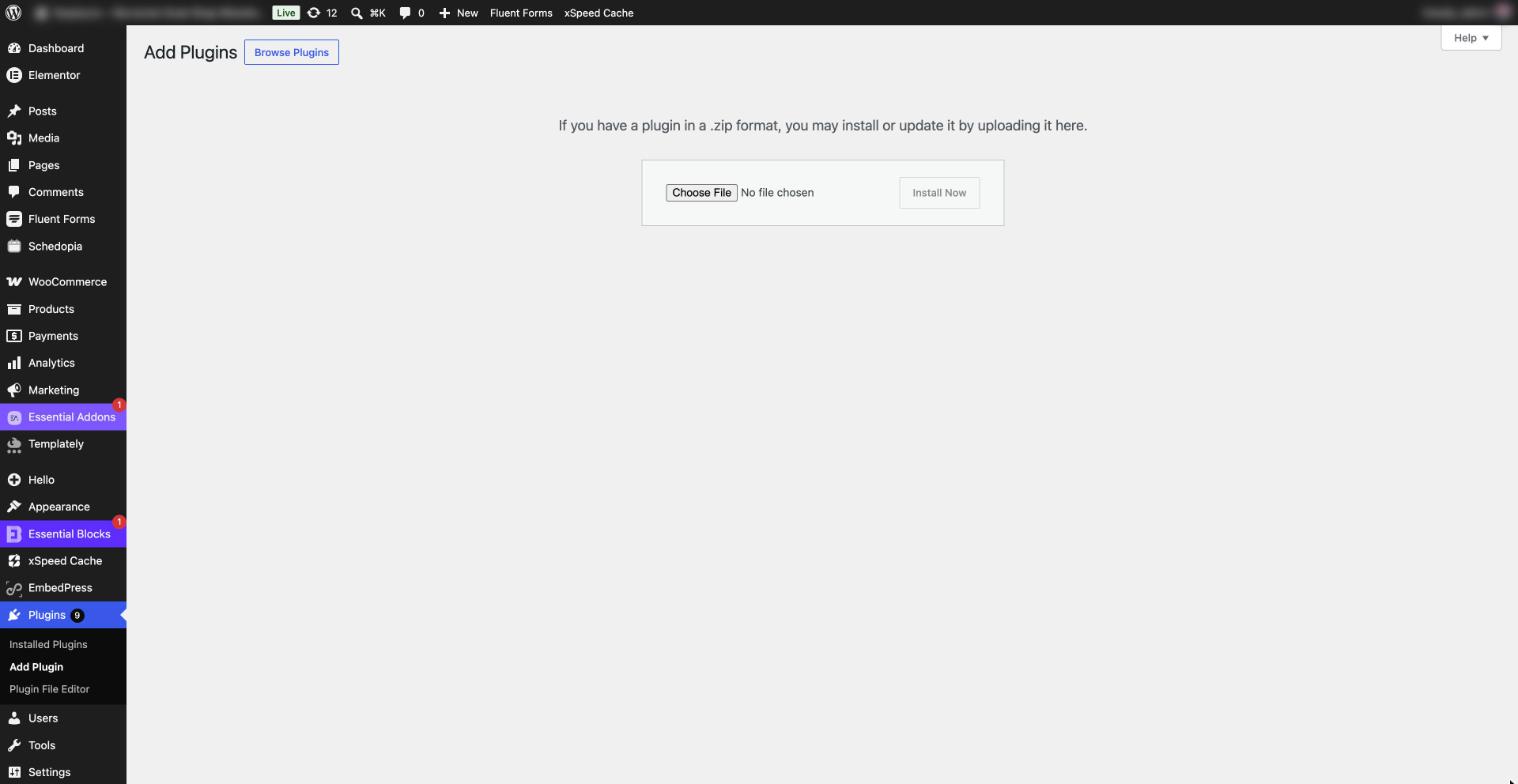
- Go to Plugins → Add Plugin and click Upload Plugin. If you downloaded from your WordPress dashboard, Templately also offers an Install it button that opens this screen for you.
- Click Choose File, select the .zip file you downloaded, and click Install Now.
- When the upload finishes, click Activate Plugin.
Keep the free version of Essential Addons or Essential Blocks active as well. The Pro plugin adds its features on top of the free one.
Install the Pro Plugin Before You Import Templates #
Some Templately templates use Pro widgets or blocks. Install and activate the Pro plugin before you import such a template, so its Pro sections come in complete. Templately reminds you during import:
- If the Pro plugin is missing, the dependency step links you to your Subscription page to download it and to the Upload Plugin screen to install it.
- If the Pro plugin is installed but not active, the dependency step asks you to Activate it on the Plugins screen first.
How to Update Essential Addons Pro and Essential Blocks Pro #
To move to a newer version, download the plugin again from Included plugins (in your WordPress dashboard or on templately.com) and upload the new .zip file on Plugins → Add Plugin → Upload Plugin. WordPress detects that the plugin is already installed and offers Replace current with uploaded. Your settings stay as they are.
#
Templately Bundle Plan FAQs #
Does Templately install Essential Addons Pro or Essential Blocks Pro automatically?
No. Following the WordPress.org plugin guidelines, Templately never installs a Pro plugin on its own. You download it from the Included plugins section of your Subscription page (in your WordPress dashboard or on templately.com) and install it yourself from Plugins → Add Plugin → Upload Plugin.
Why can I not see the Included plugins section?
In WordPress, make sure you are logged in as an administrator, your site is connected to the Templately account that holds the bundle plan, and you are on the latest version of the Templately plugin. On templately.com, make sure you are logged in to that same account. A Regular plan shows an option to add Pro plugins instead.
The download says it is not available for my plan. What now?
That message means your current plan does not include that Pro plugin. If you believe it should, contact our support team with your account email.
Can I upgrade from a Regular plan to a Bundle plan?
Yes. Open Templately → Subscription in your WordPress dashboard, switch the plan table to Bundle and choose the bundle you want, or pick it on the Templately pricing page.
Still stuck with your Templately bundle plan? Our support team is happy to help.