
The Templately Settings Panel gives you a centralized place to configure style settings with the essential design elements of your website. Without manually editing every page, you can update your logo, adjust typography, and set brand colors to modify the specific template you are using.
Follow the guide to learn how to configure template settings from the Templately Settings Panel.
Step-by-Step Guide to Configure Templately Settings Panel? #
First, from your WordPress dashboard, go to the ‘Settings’ tab under Templately. Here, you will get multiple style configuration options.
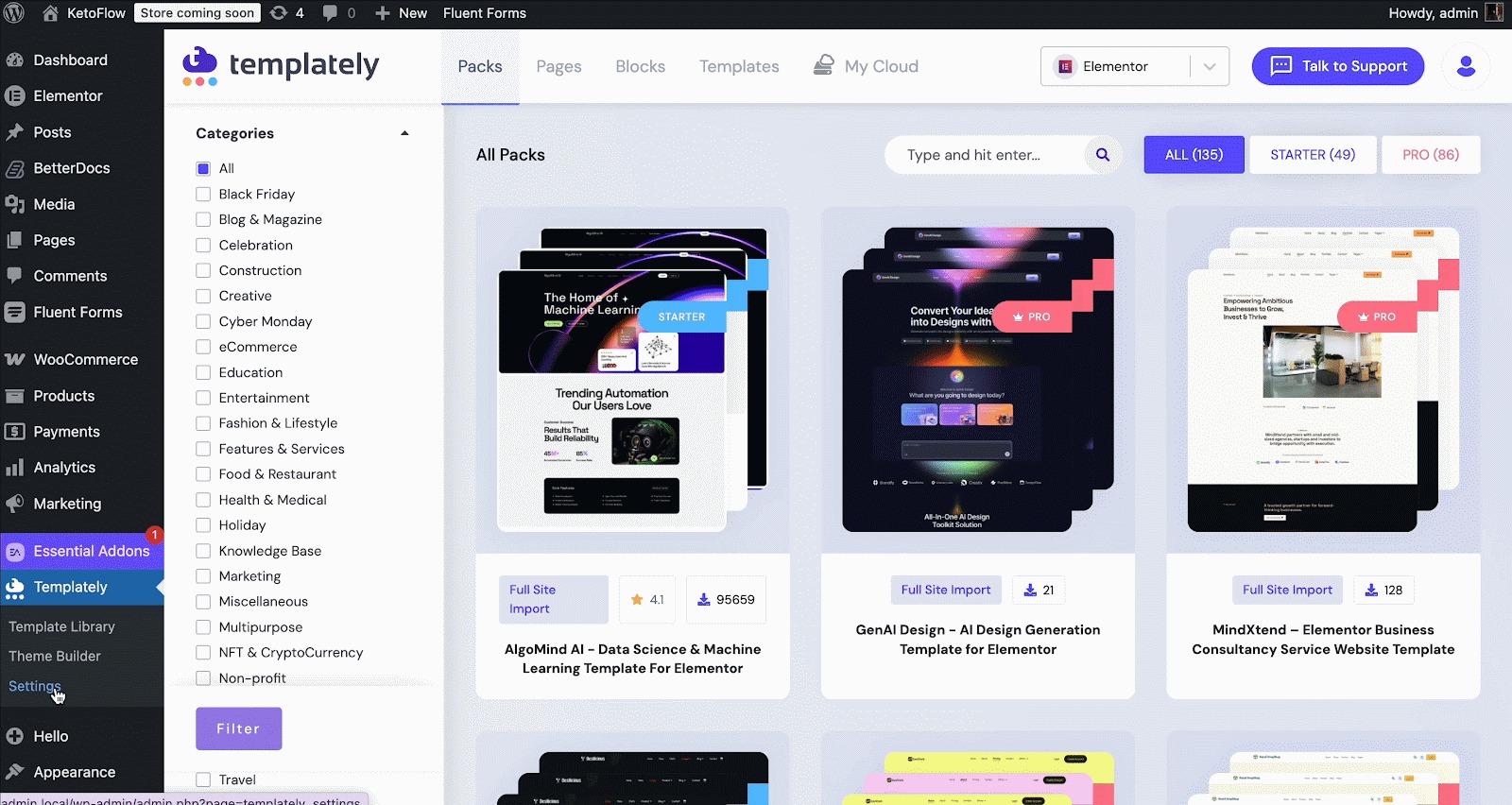
Step 1: Add Site Title, Tagline, And Logo #
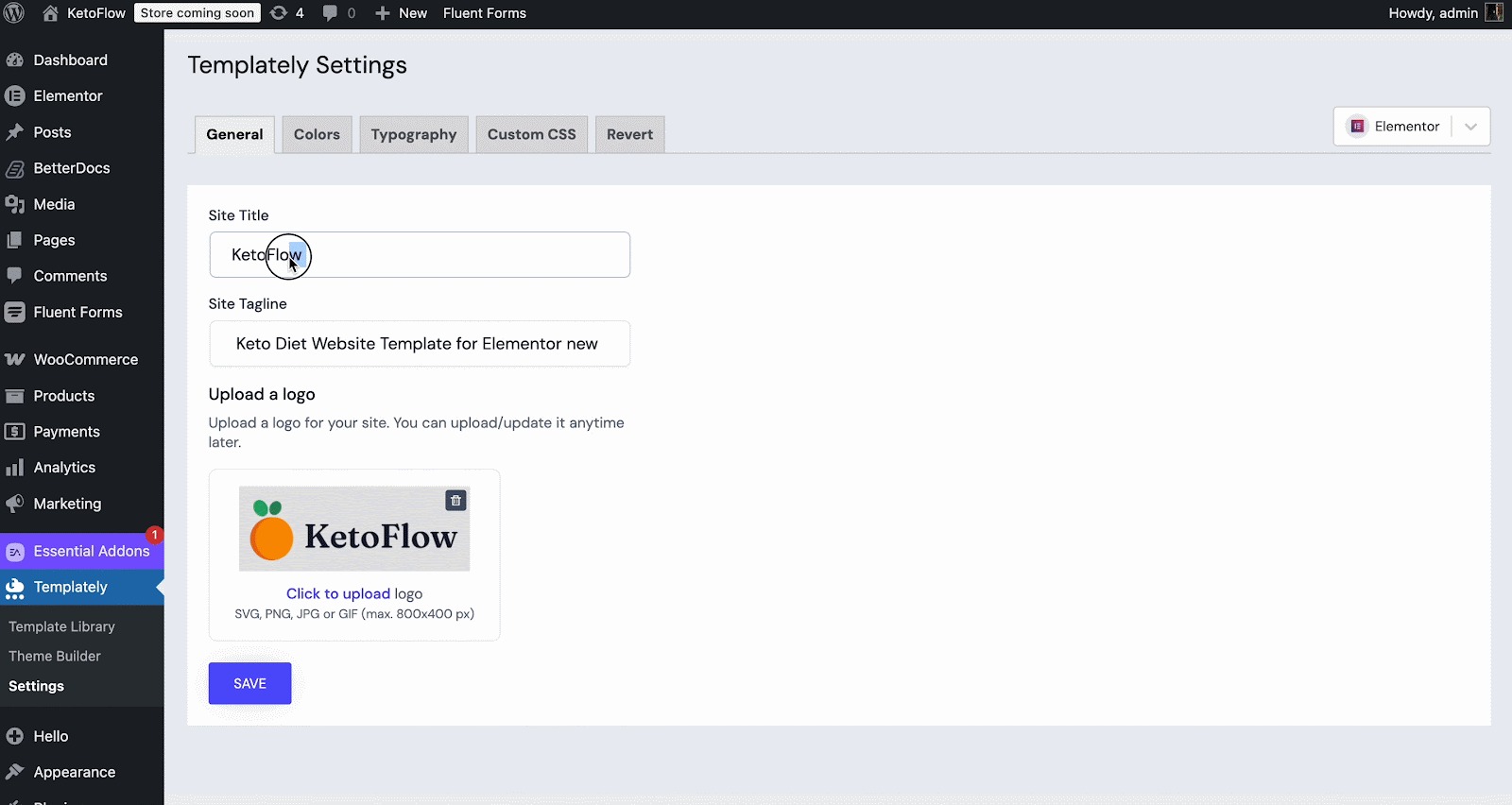
Now, from the ‘General’ tab, add/update
- Site Title – The name of your website
- Tagline – A short description that represents your brand
- Logo – Upload or replace your site logo
Once you are done adding these, click on the ‘SAVE’ button.
Step 2: Customize Website Colors #
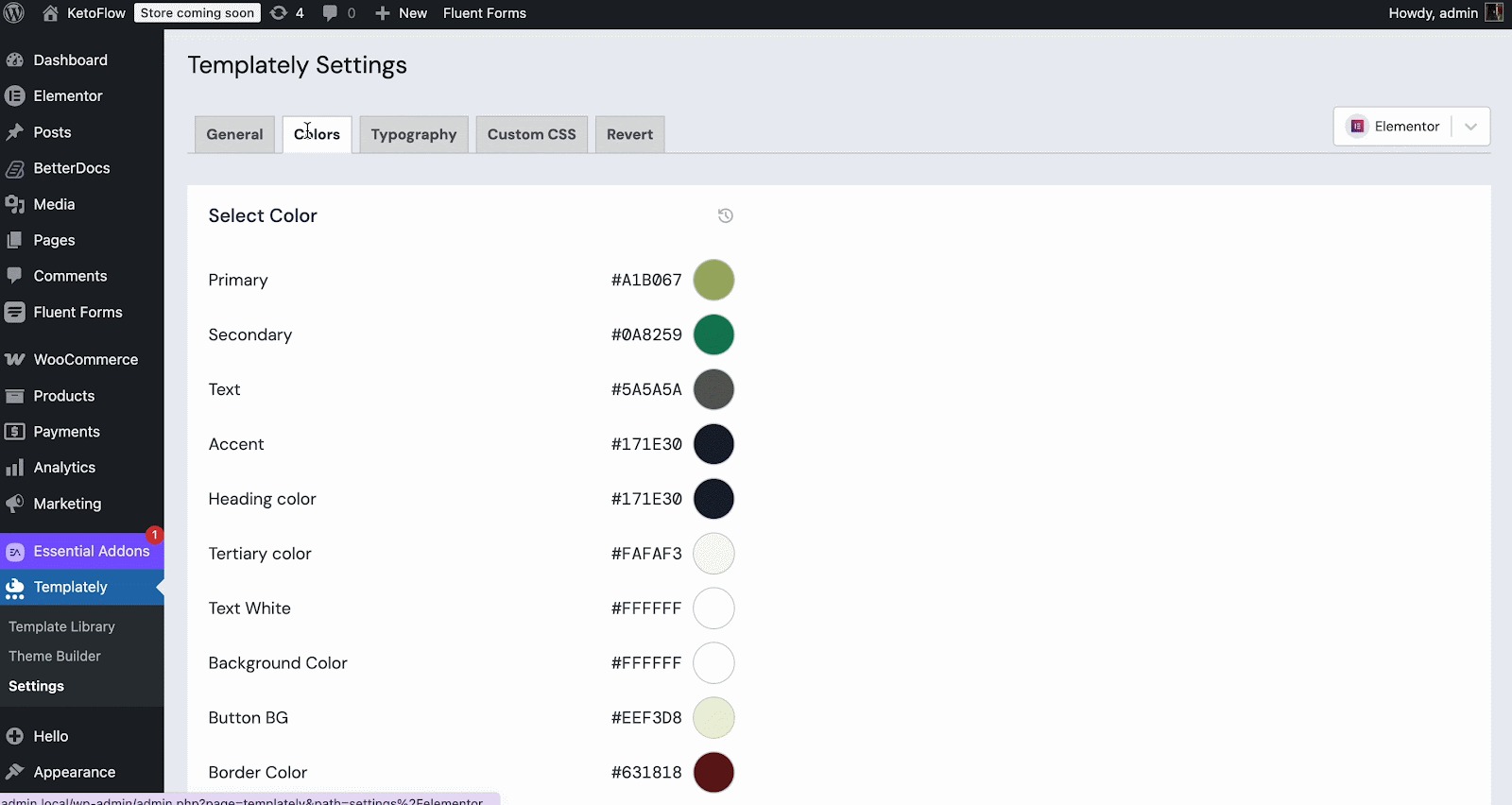
Moving to the next, ‘Colors’ tab. Here you can set your website’s global color palette. You can:
- Update primary and secondary colors
- Customize accent colors
- Modify background or text colors (based on template structure)
Select the colors as required, hit the ‘Save’ button, and these changes apply across your template.
Step 3: Select Font & Typography #
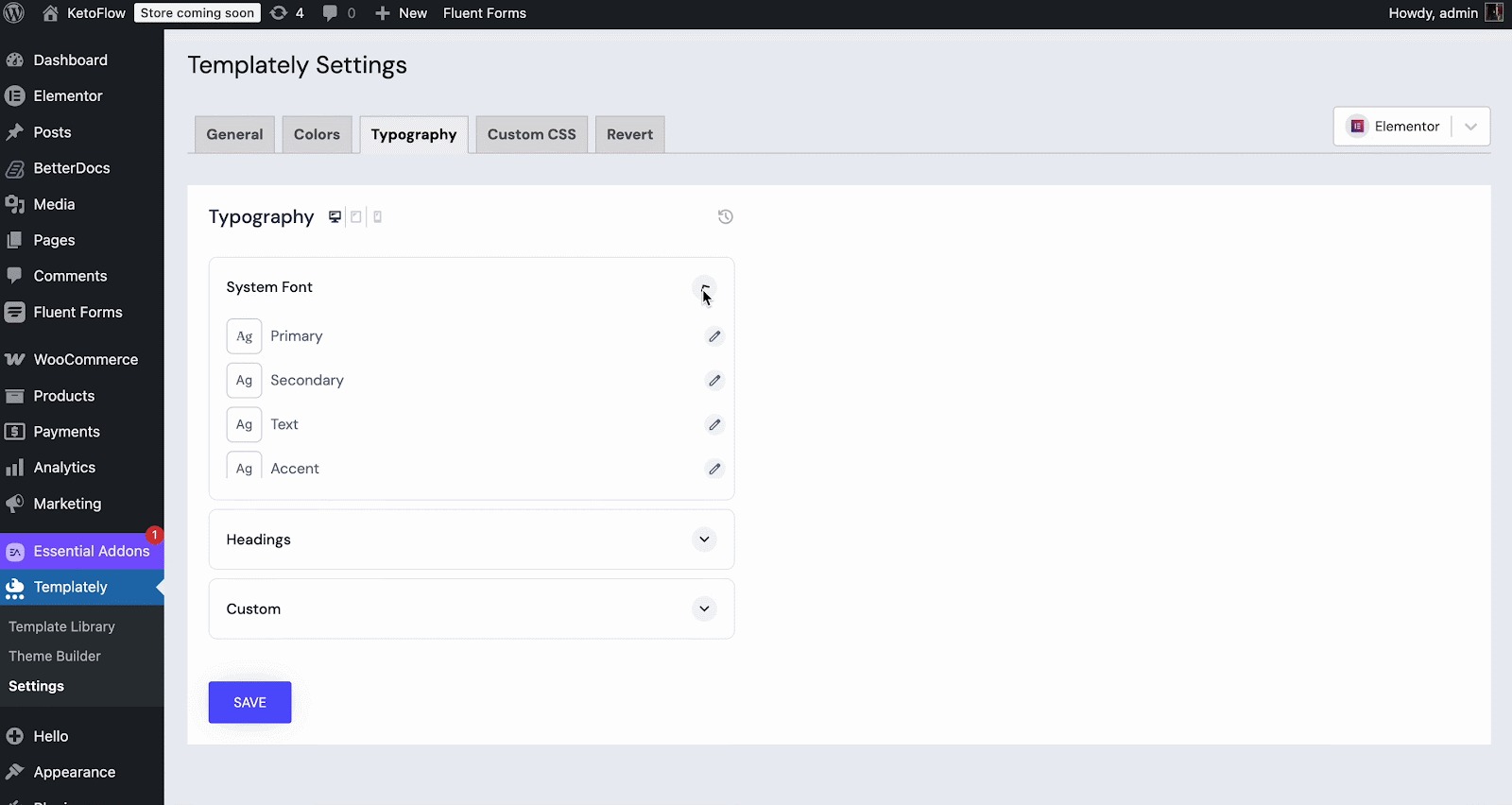
Next comes the ‘Typography’ tab, where you can:
- Choose font families for headings and body text
- Adjust font sizes
- Modify font weight and styling (depending on template compatibility)
Step 4: Custom CSS #
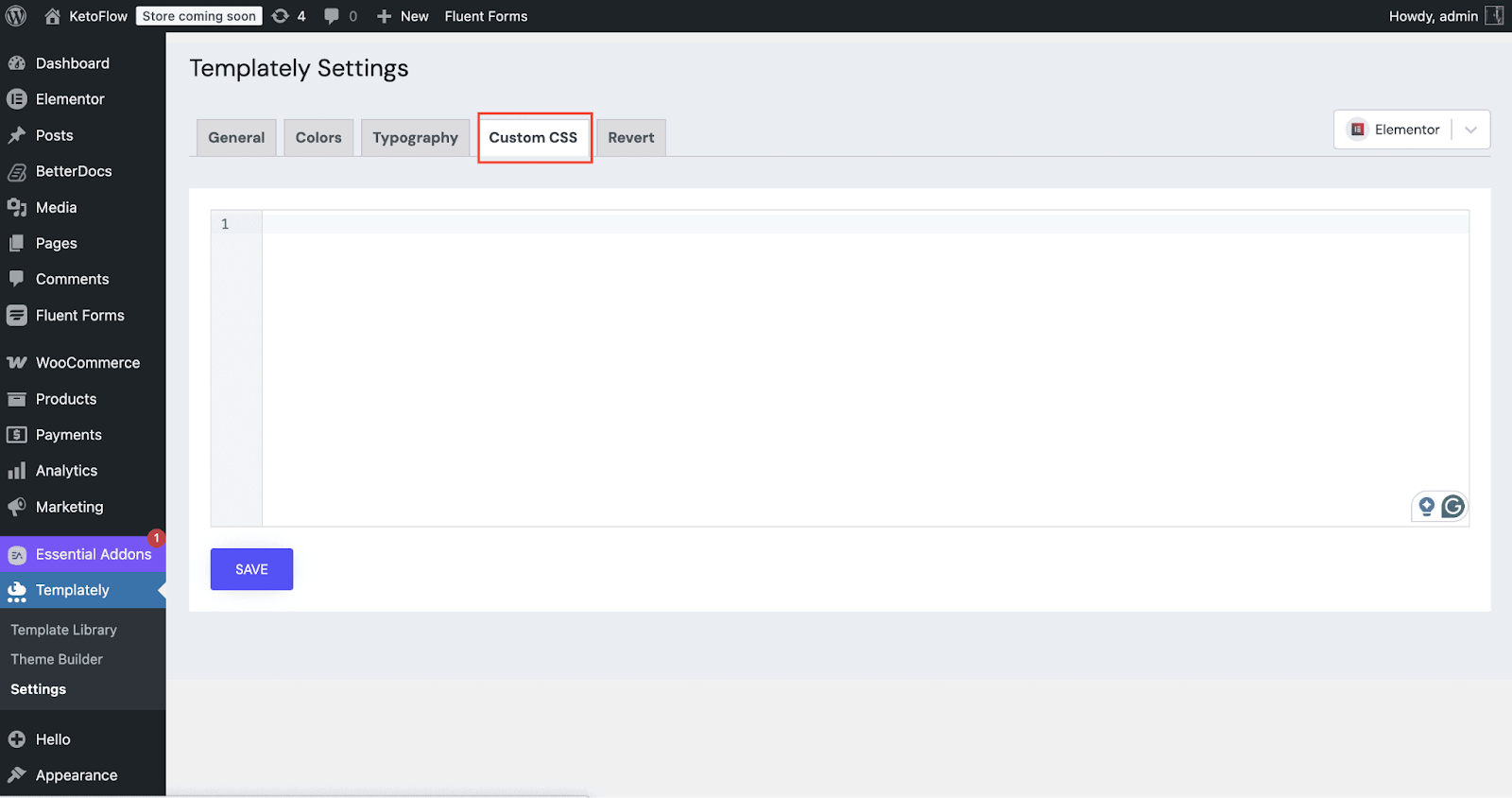
For advanced customization needs, the Settings Panel includes a ‘Custom CSS’ tab. From there, you can,
- Add your own CSS code
- Override default template styles
- Apply advanced design customizations
- Fine-tune spacing, layout, colors, or specific elements
Save the changes once you are done customizing.
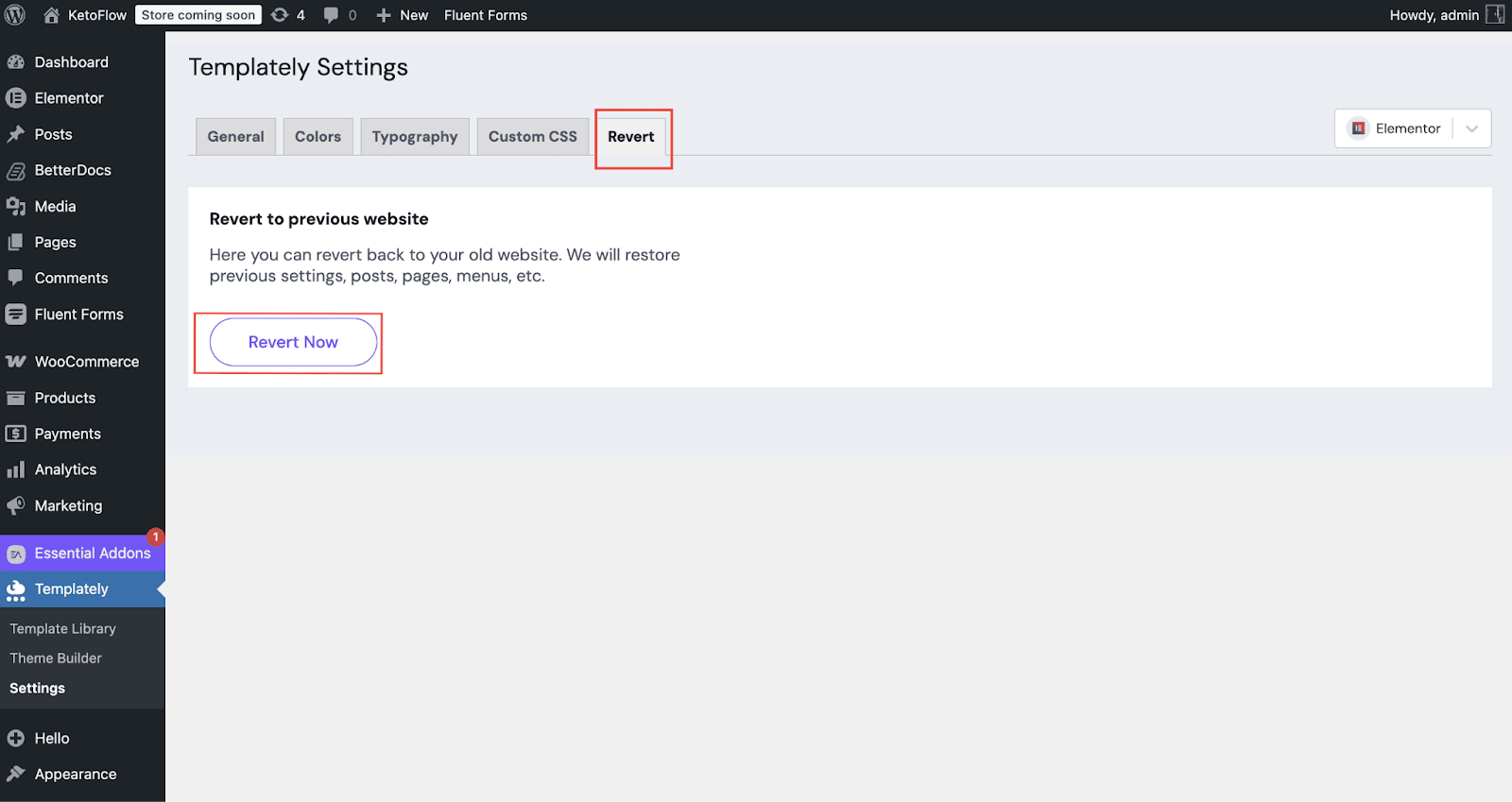
If you want to get back to the previous version of the template, just move the ‘Revert’ tab, click on ‘Revert Now’, and restore previous settings, posts, pages, menus, etc.
Note: * The “Revert Now” button works only when a full pack has been imported. It allows you to restore the website to its previous design. The button becomes active only if a pack has been imported using FSI (Full Site Import).
This is how you can configure template settings from the Templately Settings Panel. Getting stuck? Contact our support team for any help you need.


