
With Templately AI, you can now generate a website logo and customize it right inside your website. Follow the step-by-step guide on how to generate a logo with Templately AI.
Step 1: Log in to Your Templately Account #
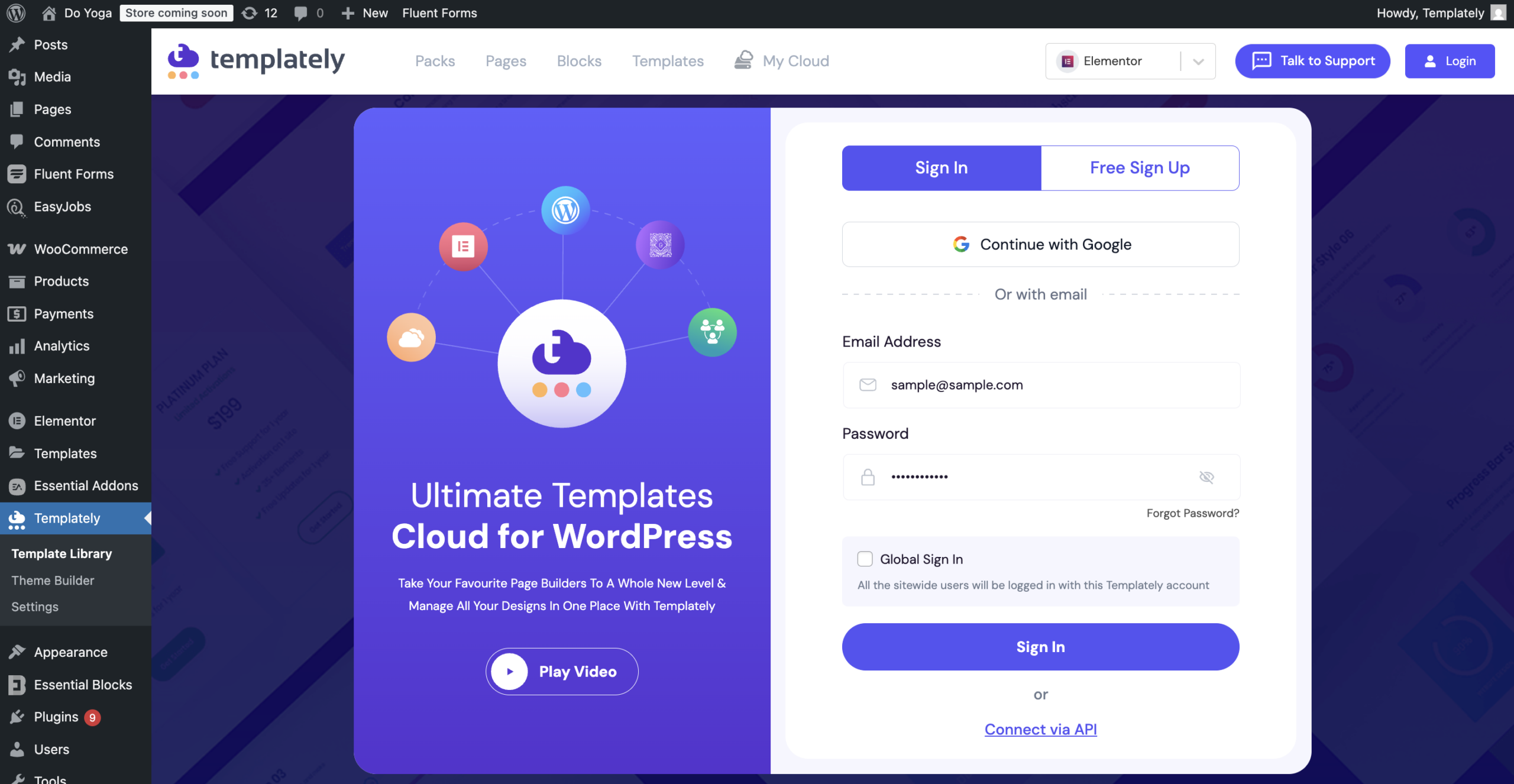
First, from your WordPress dashboard, click on “Templately” and then, with your credentials, log in to your Templately account. You can check the login process in the documentation.
Step 2: Choose the Template Pack #
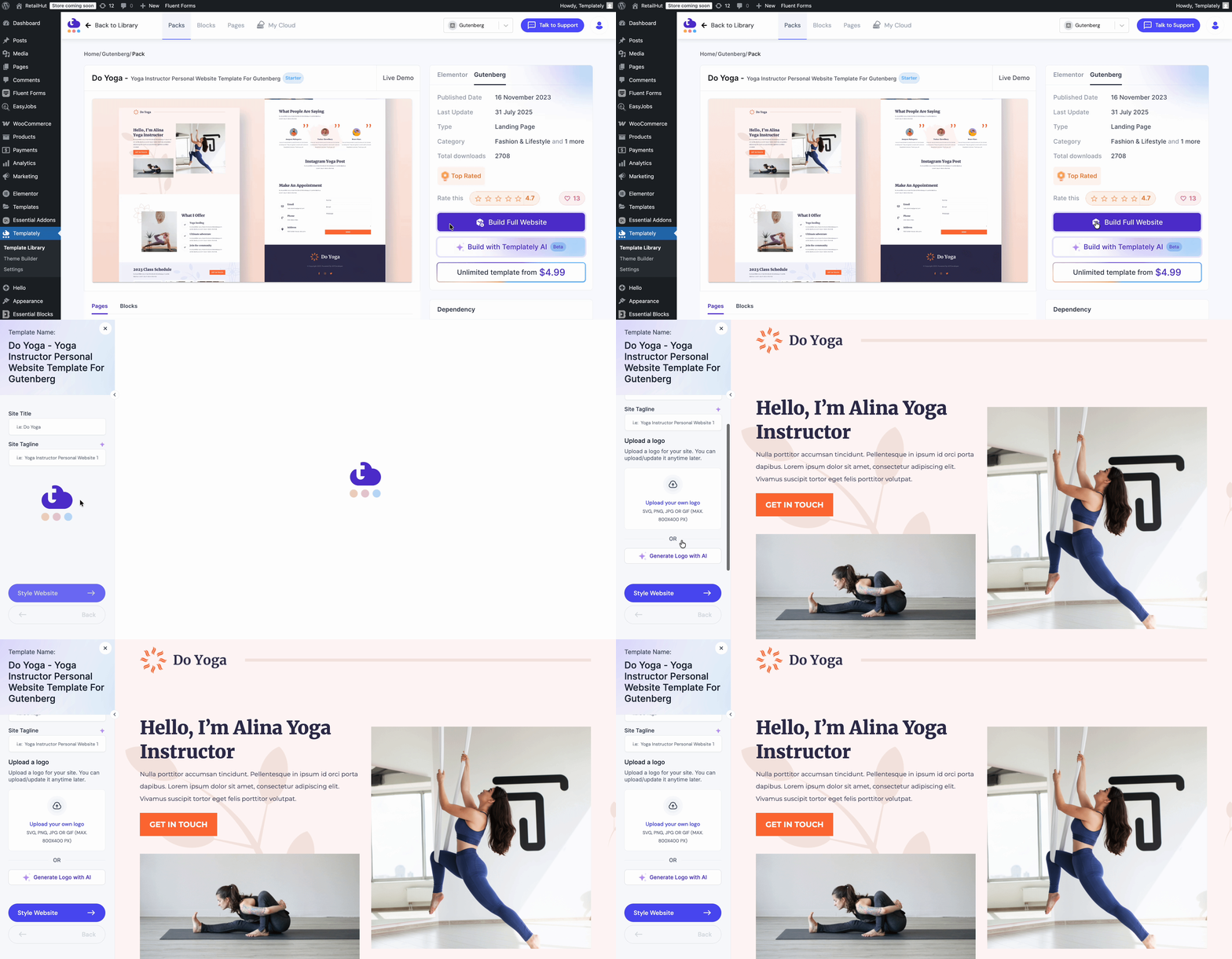
After logging in, you will see the template library from the dashboard. From there, pick the template that you want to import to generate the logo with AI.

Step 3: Insert Full Site #
Next, select the template pack and click on ‘Build Full Website’. After that, you will find the option to generate a logo with AI.
Step 4: Generate Website Logo with AI #
After that, click on the ‘Generate Logo with AI’ button. There, you will find two different options. First is ‘AI Generator’. Here, you will find different options to generate an image as you want. Here are some of the options you will get:
- Prompt: Add a prompt for what type of business logo you want to generate for your website.
- Number of Variations: You can add more than one variation of your logo. You can choose one of the generated variations.
- Image Size: Choose whether you want to show your image vertically or horizontally on your website based on your preferred size.
- Category: Here, you can select among three different categories, such as Typographic Logo, Shape Logo, and Handwritten Logo. Based on your chosen category, your logo will be generated.
- Image Quality: In this section, you can choose the High, Medium, or Low quality logo for your website.
- Output Format: Choose whether you want to select the JPG or PNG format of your logo.

After the logo is generated, click on the ‘Insert’ button to insert your logo. After inserting the logo, you can select the width and adjust the logo on your website.

Select Typography #
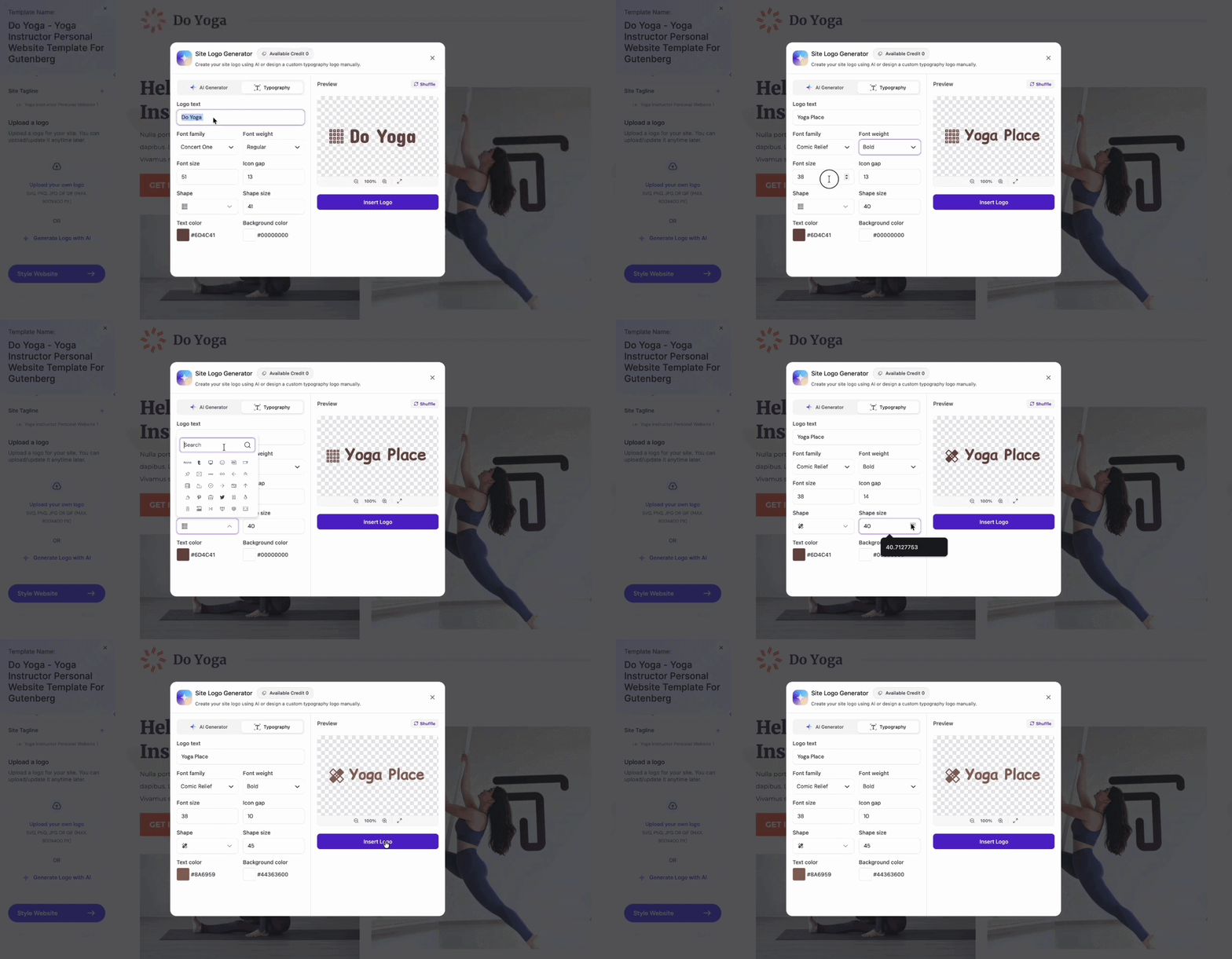
Another option is to add “Typography” to the existing logo. Here you can add text, font family, font weight, font size, icon gap, shape, shape size, and colors (as text and background color) for the selected logo. In this option, you will find the full flexibility to add your logo as you want on your website. Click on the ‘Insert’ button to insert your logo.
Final Outcome #
Finally, after completing the process, style your website and click on ‘Install to Proceed’ to build a full website. After importing the full website, you will see the AI-generated logo is inserted on your website. This is how you can simply generate your logo with AI or add typography and create a logo on your own for your website.

Getting stuck? Contact our support team for any help you need.


